Start with an image, text, emoji, or logo. Preview every size, download one ready-to-use pack, then follow the installation guide.
How it works
1. Choose image, text, emoji, or logo
2. Edit with a live favicon preview
3. Download the pack and install it
Choose the workflow that matches what you have.
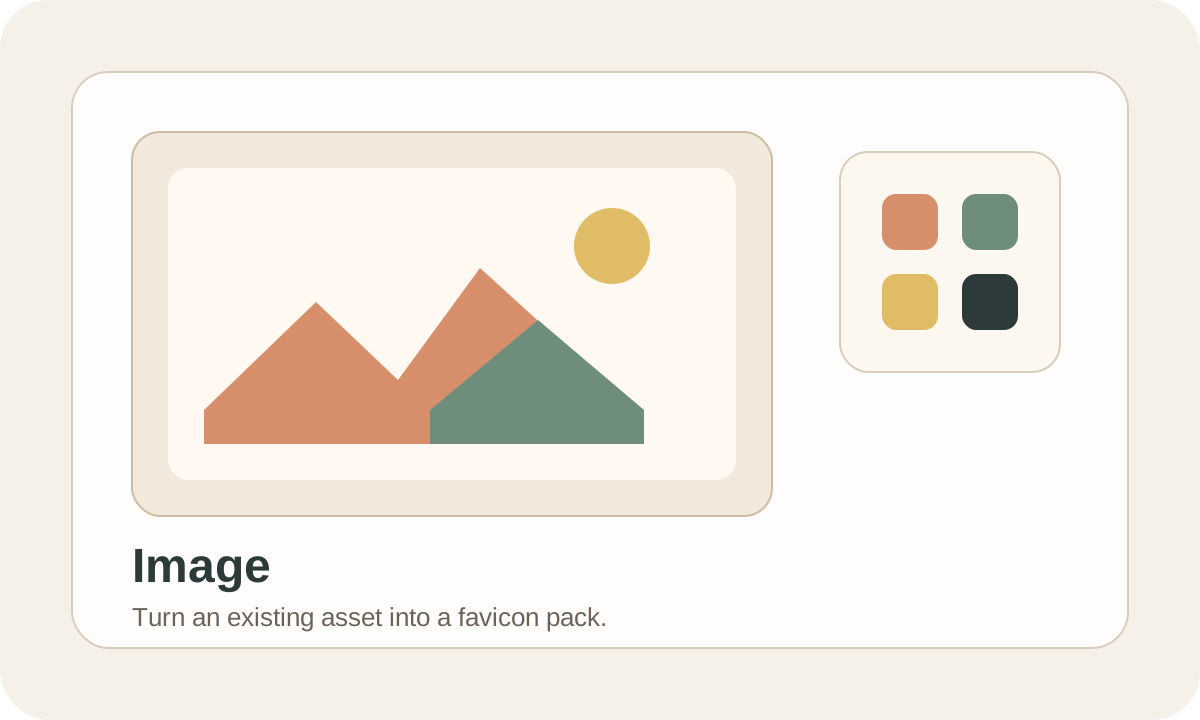
Convert an existing logo or image into a favicon pack for modern browsers.
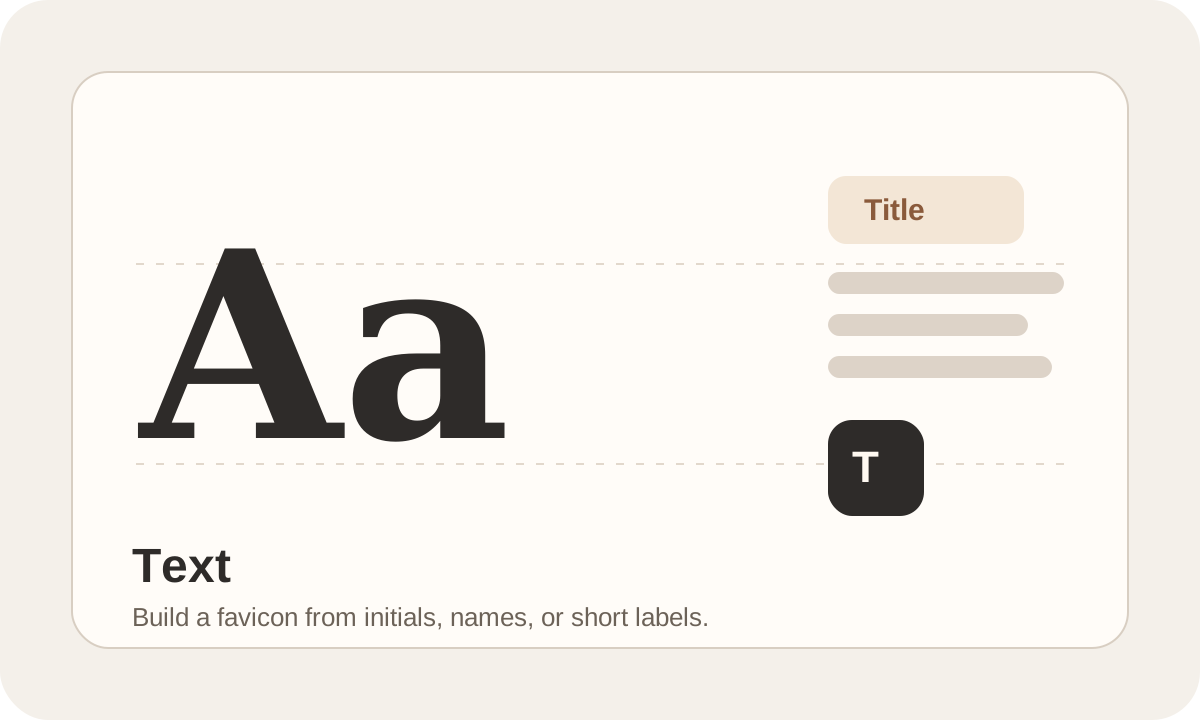
Generate a favicon from text when you need a simple identity quickly.
Create a favicon from an emoji for a lightweight and fast starting point.
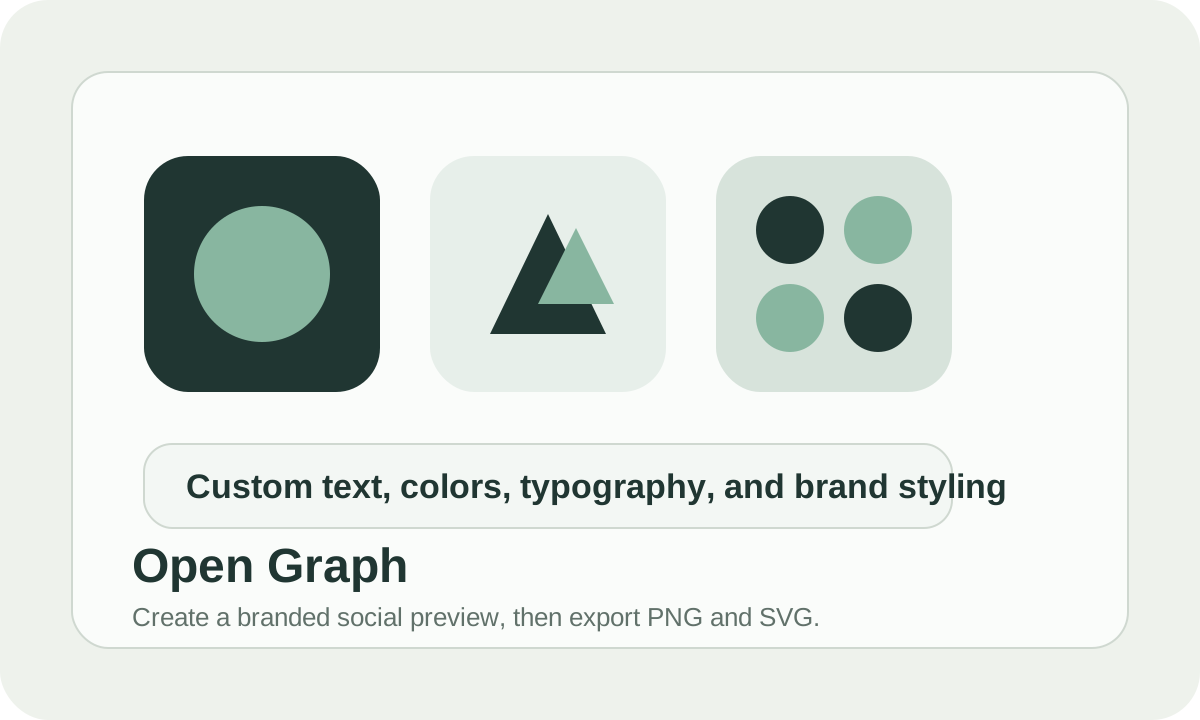
Create a branded social preview with custom text, colors, typography, and roundness, then export PNG and SVG assets.
One ZIP with assets and instructions for modern browsers and devices.
Resources
Use these guides and supporting tools when you need help beyond the generator itself.
Learn what a favicon is, why it matters, and how to generate one.
Add a traditional `.ico` favicon to your website correctly.
Use a `.png` favicon when your setup prefers modern image assets.
Follow a focused guide for adding a favicon to a SquareSpace site.
Create a branded social preview image with custom text and colors.